
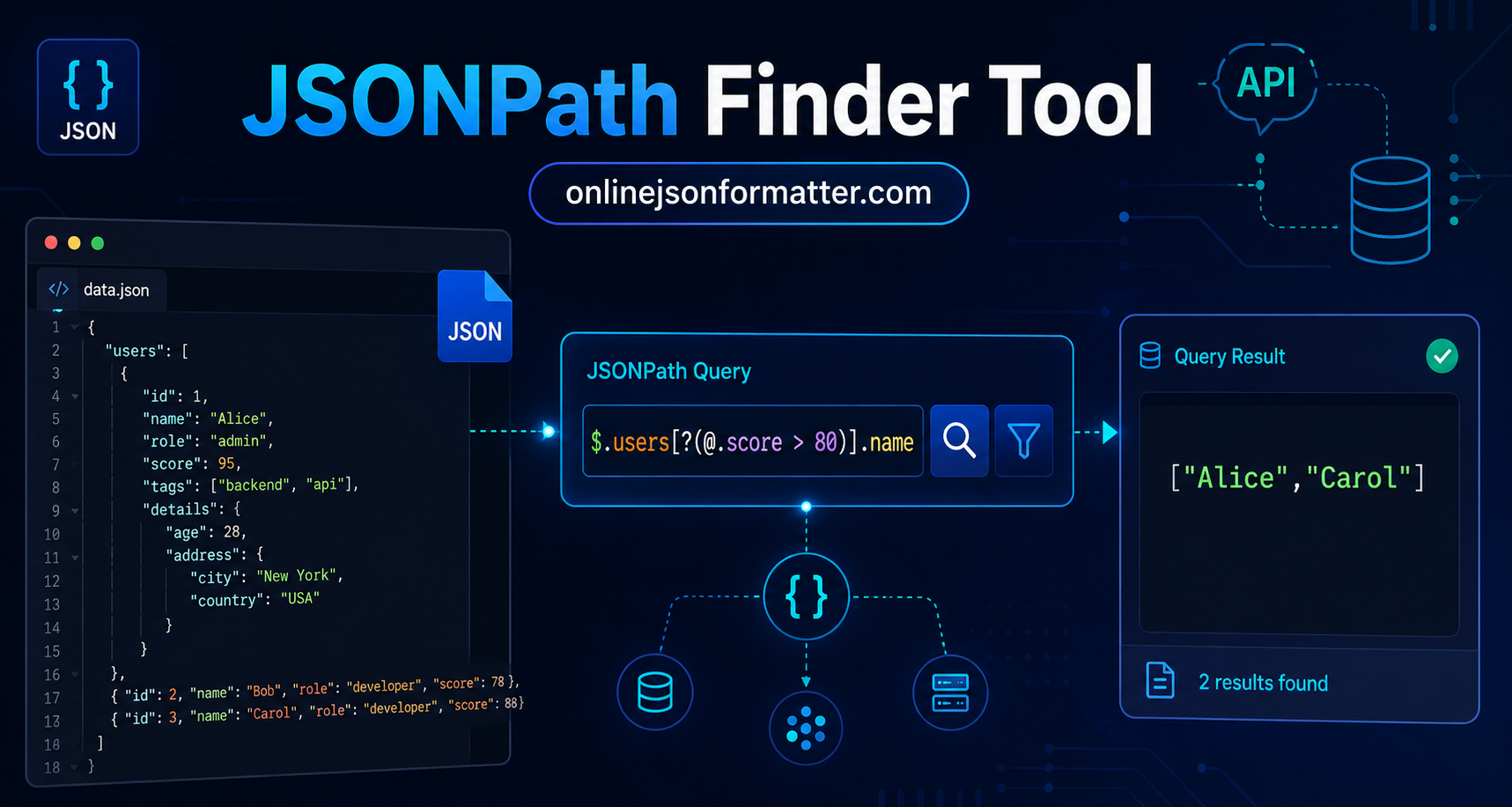

You’re staring at a deeply nested JSON response from an API. It’s got arrays inside objects inside arrays, and somewhere in there is the one value you actually need.
Sound familiar?
Most developers solve this by writing verbose loops or chaining .get() calls in Python until it works. Before extracting values, it’s often helpful to inspect the structure using a JSON Viewer or organize the data with a JSON Formatter. But there’s a cleaner way: JSONPath. And with the right JSONPath finder tool, you can extract exactly what you need in seconds.
This guide walks you through everything: what JSONPath is, how the syntax works, filter expressions, real query examples, and how it compares with XPath.
What Is JSONPath?
JSONPath is a query language for JSON similar to how XPath works for XML. It lets you navigate through a JSON structure and extract specific values without writing custom parsing code. If your JSON response is difficult to read, you can first format it with a JSON Beautifier to make the hierarchy easier to understand before creating JSONPath expressions.
The concept was introduced by Stefan Goessner in 2007. Think of it as a “path” you define to point at any value inside a JSON document.
Here’s a quick example. Given this JSON:
{
  "store": {
    "book": [
      {
        "title": "Clean Code",
        "price": 29.99,
        "author": "Robert C. Martin"
      },
      {
        "title": "The Pragmatic Programmer",
        "price": 39.99,
        "author": "David Thomas"
      }
    ]
  }
}
This JSONPath expression:
$.store.book[0].titleReturns:
"Clean Code"That’s it. No loops, no parsing logic, no guesswork.
JSONPath vs XPath: What’s the Difference?
If you’ve worked with XML, XPath feels natural. JSONPath follows a very similar idea but it’s designed specifically for JSON.
Here’s a quick comparison:
| Feature | JSONPath | XPath |
|---|---|---|
| Works with | JSON | XML |
| Root symbol | $ | / |
| Child access | .key or [‘key’] | /child |
| Wildcard | * | * |
| Recursive descent | .. | // |
| Array index | [0] | [1] (1-indexed) |
| Filter expressions | [?(@.key > value)] | [@attr > value] |
The biggest difference? JSONPath uses $ to represent the root, and arrays are zero-indexed which is more natural for most developers.
JSONPath Syntax Guide
Before you start writing queries, let’s cover the core syntax. These are the building blocks of every JSONPath expression.
Basic Notation
| Symbol | Meaning |
| $ | Root element |
| . | Child operator |
| .. | Recursive descent (search all levels) |
| * | Wildcard matches any element |
| [n] | Array index |
| [start] | Array slice |
| [?()] | Filter expression |
| @ | Current element (used inside filters) |
Dot Notation vs Bracket Notation
Both work. Dot notation is cleaner. Bracket notation is useful when keys have spaces or special characters.
// Dot notation
$.user.name

// Bracket notation
$['user']['name']

// Key with a space only bracket notation works here
$['user info']['first name']
JSONPath Expression Examples
Let’s use a more realistic JSON dataset for the examples below.
{
  "users": [
    {
      "id": 1,
      "name": "Alice",
      "role": "admin",
      "score": 95,
      "tags": ["backend", "api"]
    },
    {
      "id": 2,
      "name": "Bob",
      "role": "developer",
      "score": 78,
      "tags": ["frontend", "react"]
    },
    {
      "id": 3,
      "name": "Carol",
      "role": "developer",
      "score": 88,
      "tags": ["backend", "python"]
    }
  ],
  "meta": {
    "total": 3,
    "page": 1
  }
}
Get All Users
$.users[*]Returns all three user objects.
Get the First User’s Name
$.users[0].nameReturns:
"Alice"Get All Names
$.users[*].nameReturns:
["Alice", "Bob", "Carol"]Get the Last User
$.users[-1]Returns the Carol object. Negative indexing works in most modern implementations.
Get Users at Index 0 and 2
$.users[0,2]Returns Alice and Carol.
Get a Slice of the Array
$.users[0:2]Returns Alice and Bob (index 0 and 1 the end is exclusive).
Get All Tags Across All Users (Recursive)
$..tagsThis uses recursive descent. It finds tags at any depth.
JSONPath Filter Examples
Filters are where JSONPath gets really powerful. They let you query based on conditions like a WHERE clause in SQL.
Syntax:
[?(@.field operator value)]The @ symbol refers to the current element being evaluated.
Find All Developers
$.users[?(@.role == "developer")]Returns Bob and Carol.
Find Users with Score Above 80
$.users[?(@.score > 80)]Returns Alice and Carol.
Find Users with Score Between 80 and 95
$.users[?(@.score >= 80 && @.score <= 95)]Returns Alice and Carol.
Find Users Who Have the “backend” Tag
$.users[?("backend" in @.tags)]Returns Alice and Carol. Not all implementations support in; test this in your JSONPath evaluator online before relying on it.
Find Users Whose Name Starts with “A”
Some tools support regex:
$.users[?(@.name =~ /^A.*/)]Returns Alice.
How to Use a JSONPath Finder Tool Online
You don’t need to set up a local environment to start experimenting. A good JSONPath online tool or JSONPath tester tool lets you paste your JSON, write expressions, and see results instantly.
Here’s how to use one:
Step 1: Paste Your JSON
Drop your raw JSON into the input panel. Most tools auto-format it.
Step 2: Write Your Expression
Start with $ and build your path. Try $.. with a key name to search recursively if you’re not sure of the structure.
Step 3: Run the Query
Hit evaluate. Results show up immediately usually as an array of matched values.
Step 4: Refine
If you get too many results, add a filter. If you get none, check your key names. JSON is case-sensitive.
Popular Tools You Can Try
- JSONPath.com — clean, fast, beginner-friendly
- JSONPath Evaluator by Christoph Dorn — solid for testing complex filters
- jsonpathfinder.com — visual tree explorer alongside query results
How to Extract Data from JSON Using JSONPath in Code
Once you’ve validated your expression in a tester, you’ll want to use it in real code.
Python (using jsonpath-ng)
from jsonpath_ng import parse
import json

data = json.loads("""
{
  "users": [
    { "name": "Alice", "score": 95 },
    { "name": "Bob", "score": 78 }
  ]
}
""")

expression = parse("$.users[?(@.score > 80)].name")
matches = [match.value for match in expression.find(data)]

print(matches)

# Output: ['Alice']
The jsonpath-ng library is the most feature-complete option in Python.
Install it with:
pip install jsonpath-ngJavaScript (using jsonpath package)
const jsonpath = require('jsonpath');

const data = {
  users: [
    { name: "Alice", score: 95 },
    { name: "Bob", score: 78 }
  ]
};

const result = jsonpath.query(
  data,
  '$.users[?(@.score > 80)].name'
);

console.log(result);

// Output: ['Alice']
Install with:
npm install jsonpathJava (using Jayway JsonPath)
import com.jayway.jsonpath.JsonPath;

String json =
"{ \"users\": [{ \"name\": \"Alice\", \"score\": 95 }, { \"name\": \"Bob\", \"score\": 78 }] }";

List<String> names =
JsonPath.read(json, "$.users[?(@.score > 80)].name");

System.out.println(names);

// Output: [Alice]
Jayway JsonPath is the go-to library for the JVM ecosystem.
Common Mistakes to Avoid
Here’s where most developers trip up when they first start with JSONPath.
Forgetting That JSON Keys Are Case-Sensitive
$.users[*].Namewon’t work if the actual key is:
nameDouble-check your casing.
Using 1-Based Indexing
Coming from XPath? Remember: JSONPath arrays start at 0, not 1.
Assuming All Tools Support All Features
Filter operators like =~ (regex), in, and negative indexing aren’t universally supported. Always validate in your specific library’s documentation.
Not Escaping Special Characters in Keys
If a key contains a dash, space, or dot, use bracket notation:
$['my-key']['nested value']Overusing Recursive Descent (..)
$..namewill find every name key at every level. That’s sometimes what you want, but if your JSON is large, it can return unexpected results from deeply nested areas.
Best Practices for JSONPath Queries
Be as Specific as Possible
The more precise your path, the fewer surprises you get.
Prefer:
$.users[0].nameover:
$..nameunless you genuinely need to search the entire tree.
Test Before You Deploy
Use a JSONPath evaluator online to validate your expression against real data. Don’t assume it works; confirm it.
Handle Missing Keys Gracefully
In production code, always check for empty results. A missing key won’t throw an error in most libraries; it just returns an empty array.
Document Your Expressions
JSONPath can get complex fast. Add a comment explaining what each expression returns, especially for filter queries.
Real-World Use Cases
JSONPath shows up more often than you might think.
API Response Parsing
Extracting specific fields from large REST API responses without deserializing the entire payload. Many teams first clean and inspect the response using a JSON Beautifier before creating reusable JSONPath queries.
Configuration Files
Tools like Kubernetes and some CI/CD pipelines use JSONPath-style selectors to query config values.
Testing and Assertions
API testing tools like Postman and REST Assured support JSONPath to assert specific values in responses.
Data Pipelines
ETL workflows use JSONPath to extract and transform fields from JSON data sources before loading.
Log Analysis
Querying structured JSON logs to find specific error codes, user IDs, or request paths.
Tools Worth Bookmarking
If you’re working with JSON regularly, these tools will save you real time.
JSONPath Tester
Test expressions interactively before using them in code.
JSON Formatter & Validator
Format and validate your JSON structure first, then query it.
JSON to YAML Converter
Sometimes easier to read in YAML form while debugging structure.
XML to JSON Converter
Convert legacy XML responses before applying JSONPath queries.
Conclusion
JSONPath is one of those tools that feels trivial until you actually need it and then you wonder how you ever worked without it.
Once you understand the syntax and get comfortable with filters, data extraction from JSON becomes fast, readable, and repeatable. No more nested loops. No more index gymnastics.
Start with Online JSON Formatter to experiment with your expressions. Once you’re confident, drop the query into your codebase using the right library for your language.
The more complex your JSON, the more valuable JSONPath becomes. Give it a proper try you’ll see why it’s become a standard part of most developers’ toolkits.


