
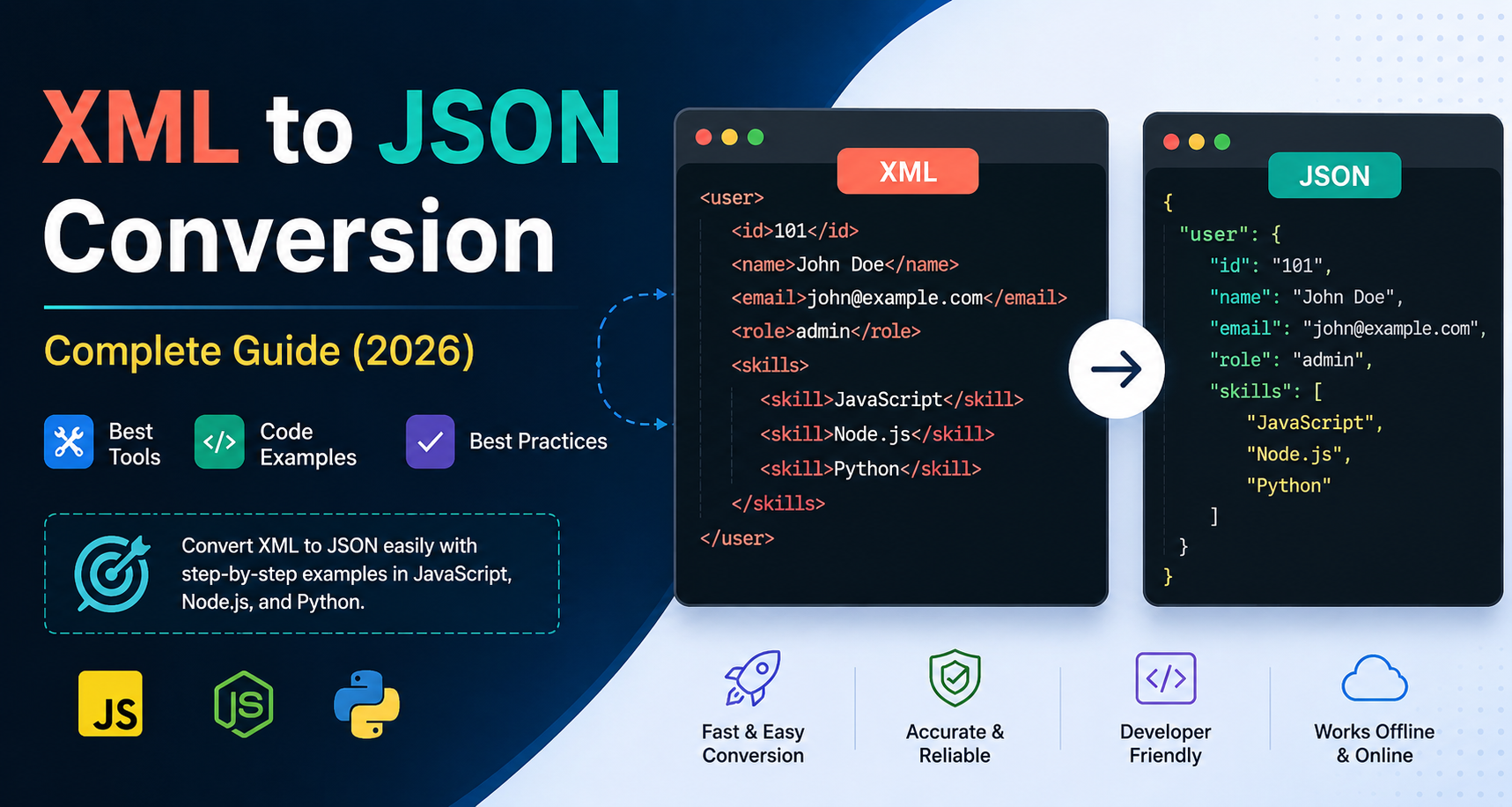

You’re working on an API integration. The third-party service sends data in XML. Your app runs on JSON. You’re staring at a pile of angle brackets wondering why can’t everyone just use the same format?
Sound familiar? Every developer hits this wall eventually.
XML to JSON conversion is one of those tasks that looks simple on the surface but hides a surprising amount of nuance. Nested elements, attributes, arrays, namespaces things get messy fast.
This guide covers everything you need: how the conversion actually works, free online tools to get it done instantly, and real code examples in JavaScript, Python, and Node.js so you can automate it in your own projects. After conversion, use a JSON Formatter to beautify the output and make it easier to read, analyze, and debug.
XML vs JSON: Why the Difference Even Matters
Before we dive into conversion, let’s quickly understand what we’re working with.
XML (Extensible Markup Language) was built for document structure. It’s verbose, uses tags, supports attributes, and was the go-to format for data exchange in the early web and enterprise systems.
JSON (JavaScript Object Notation) came later and won the web. It’s lighter, easier to read, and maps directly to data structures in modern languages.
Here’s the same data in both formats:
XML:
<user>
<id>101</id>
<name>Sarah Connor</name>
<email>[email protected]</email>
<role>admin</role>
</user>
JSON:
{
“user”: {
“id”: “101”,
“name”: “Sarah Connor”,
“email”: “[email protected]”,
“role”: “admin”
}
}
JSON is visibly cleaner. It’s also what REST APIs, JavaScript frameworks, NoSQL databases, and most modern tooling expects. That’s exactly why XML to JSON conversion is such a common developer task.
How XML to JSON Conversion Actually Works
Here’s where most developers get it wrong they assume it’s a 1:1 mapping. It’s not.
XML has concepts that don’t exist in JSON natively. Two of the big ones:
1. Attributes vs Child Elements
In XML, you can store data as an attribute or as a child element:
<!– Attribute approach –>
<product id=”42″ price=”19.99″>Laptop Stand</product>
<!– Child element approach –>
<product>
<id>42</id>
<price>19.99</price>
<name>Laptop Stand</name>
</product>
When you convert to JSON, the attribute version becomes a bit awkward. Most parsers handle it like this:
{
“product”: {
“_attributes”: {
“id”: “42”,
“price”: “19.99”
},
“_text”: “Laptop Stand”
}
}
Or flatten it, depending on the library. Always check how your converter handles attributes before trusting the output in production.
2. Repeated Elements as Arrays
XML allows repeated sibling elements. JSON handles repetition with arrays. This can cause a sneaky bug when there’s one item, some parsers return an object; when there are two or more, they return an array. Your code breaks when the API returns only a single result.
<orders>
<order><id>1</id></order>
<order><id>2</id></order>
</orders>
Good converter output:
{
“orders”: {
“order”: [
{ “id”: “1” },
{ “id”: “2” }
]
}
}
We’ll cover how to handle this properly in the code examples below.
Best Free XML to JSON Converter Tools (Online)
If you just need a quick one-time conversion, these free online tools get the job done without any setup.
1. Codebeautify XML to JSON Converter
Clean UI, handles large files, shows both input and output side by side. Supports downloading the converted JSON. Good for quick checks.
2. ConvertJSON.com
Straightforward, fast, and works well with deeply nested XML. Also offers JSON to XML going the other direction.
3. JSON Formatter & Validator (jsonformatter.org)
Beyond just converting, it validates and beautifies your output. Handy when you want to sanity-check the structure after conversion.
4. FreeFormatter.com
Solid for XML files with namespaces or complex attributes. Shows error messages when the XML is malformed, which saves debugging time.
Pro tip: Before pasting any real data into an online tool, strip out sensitive values. Use placeholder data for testing you don’t know how these tools store or log inputs.
XML to JSON in JavaScript (Browser & Node.js)
Now let’s get into the code.
Using fast-xml-parser (Recommended)
fast-xml-parser is the most reliable library for this in the JavaScript ecosystem. It handles attributes, arrays, and edge cases better than most alternatives.
Install it:
npm install fast-xml-parser
Basic conversion:
const { XMLParser } = require(‘fast-xml-parser’);
const xmlData = `
<catalog>
<book id=”bk101″>
<title>The Pragmatic Programmer</title>
<author>Andrew Hunt</author>
<price>49.99</price>
</book>
<book id=”bk102″>
<title>Clean Code</title>
<author>Robert C. Martin</author>
<price>39.99</price>
</book>
</catalog>
`;
const parser = new XMLParser({
ignoreAttributes: false, // Include XML attributes
attributeNamePrefix: “@_”, // Prefix for attributes in JSON
isArray: (name) => name === ‘book’ // Always treat <book> as array
});
const result = parser.parse(xmlData);
console.log(JSON.stringify(result, null, 2));
Output:
{
“catalog”: {
“book”: [
{
“@_id”: “bk101”,
“title”: “The Pragmatic Programmer”,
“author”: “Andrew Hunt”,
“price”: 49.99
},
{
“@_id”: “bk102”,
“title”: “Clean Code”,
“author”: “Robert C. Martin”,
“price”: 39.99
}
]
}
}
Notice the isArray option. That’s the fix for the single-item-vs-array problem mentioned earlier. Always define which elements should be treated as arrays in your data schema.
XML to JSON in Node.js Converting an XML File
In real projects, you’re usually reading from a file or an API response, not a hardcoded string.
const fs = require(‘fs’);
const { XMLParser } = require(‘fast-xml-parser’);
// Read XML from file
const xmlContent = fs.readFileSync(‘./data/products.xml’, ‘utf8’);
const parser = new XMLParser({
ignoreAttributes: false,
attributeNamePrefix: “@_”,
isArray: (name) => [‘product’, ‘category’, ‘tag’].includes(name)
});
const jsonData = parser.parse(xmlContent);
// Write JSON output to file
fs.writeFileSync(‘./output/products.json’, JSON.stringify(jsonData, null, 2));
console.log(‘Conversion complete. Check output/products.json’);
This is a clean pattern for batch XML file conversion. Drop it into a script, point it at a directory, and you’re done.
XML to JSON in Python
Python has excellent XML support out of the box, and xmltodict is the simplest library for XML to JSON conversion.
Using xmltodict
Install:
pip install xmltodict
Basic example:
import xmltodict
import json
xml_string = “””
<employees>
<employee id=”E001″>
<name>Alice Johnson</name>
<department>Engineering</department>
<salary>95000</salary>
</employee>
<employee id=”E002″>
<name>Bob Smith</name>
<department>Design</department>
<salary>85000</salary>
</employee>
</employees>
“””
# Parse XML to OrderedDict
data_dict = xmltodict.parse(xml_string)
# Convert to JSON string
json_output = json.dumps(data_dict, indent=2)
print(json_output)
Output:
{
“employees”: {
“employee”: [
{
“@id”: “E001”,
“name”: “Alice Johnson”,
“department”: “Engineering”,
“salary”: “95000”
},
{
“@id”: “E002”,
“name”: “Bob Smith”,
“department”: “Design”,
“salary”: “85000”
}
]
}
}
Attributes in xmltodict are automatically prefixed with @. Clean and predictable.
Converting an XML File in Python
import xmltodict
import json
# Read XML file
with open(‘data/inventory.xml’, ‘r’, encoding=’utf-8′) as xml_file:
xml_content = xml_file.read()
# Convert
parsed_data = xmltodict.parse(xml_content)
# Save as JSON
with open(‘output/inventory.json’, ‘w’, encoding=’utf-8′) as json_file:
json.dump(parsed_data, json_file, indent=2)
print(“Done! inventory.json created.”)
That’s all it takes. The xmltodict library handles the heavy lifting, including nested elements, lists, and mixed content.
Handling the Single-Item Array Problem in Python
import xmltodict
import json
xml_string = “””
<store>
<item>
<name>Notebook</name>
<price>12.99</price>
</item>
</store>
“””
# Force ‘item’ to always be a list
parsed = xmltodict.parse(xml_string, force_list={‘item’})
print(json.dumps(parsed, indent=2))
The force_list parameter is your best friend here. Pass in a set of element names that should always deserialize as arrays even when the XML only has one occurrence.
Parsing XML to JSON from an API Response
A lot of developers need to fetch XML from an API and immediately convert it. Here’s how to do that cleanly.
JavaScript (Node.js + fetch)
const { XMLParser } = require(‘fast-xml-parser’);
async function fetchAndConvertXML(url) {
try {
const response = await fetch(url);
if (!response.ok) {
throw new Error(`HTTP error: ${response.status}`);
}
const xmlText = await response.text();
const parser = new XMLParser({
ignoreAttributes: false,
attributeNamePrefix: “@_”
});
const jsonData = parser.parse(xmlText);
return jsonData;
} catch (error) {
console.error(‘Conversion failed:’, error.message);
throw error;
}
}
// Usage
fetchAndConvertXML(‘https://api.example.com/products.xml’)
.then(data => console.log(JSON.stringify(data, null, 2)))
.catch(err => console.error(err));
Python (requests + xmltodict)
import requests
import xmltodict
import json
def fetch_and_convert_xml(url):
response = requests.get(url, timeout=10)
response.raise_for_status()
# Parse XML response body
data = xmltodict.parse(response.text)
return data
# Usage
url = “https://api.example.com/catalog.xml”
result = fetch_and_convert_xml(url)
print(json.dumps(result, indent=2))
Both patterns are production-ready. Add your auth headers, retry logic, and error handling on top as needed.
Common Mistakes to Avoid
1. Ignoring the single-item array bug This one causes production incidents. Use isArray in fast-xml-parser or force_list in xmltodict for any element that could appear multiple times in your data schema.
2. Losing data types XML doesn’t have native types everything is a string. When you convert, numbers may stay as strings. “49.99” is not the same as 49.99. Some libraries auto-cast types; others don’t. Check your library settings and validate outputs.
3. Dropping XML namespaces If your XML uses namespaces like <ns:product>, make sure your parser knows how to handle them. Some libraries strip namespaces by default, which can cause silent data loss.
4. Not validating the XML first Malformed XML will either throw an error or silently produce wrong JSON. Run your XML through a validator before conversion, especially if the source is user-generated or a third-party API.
5. Assuming structure is stable XML APIs sometimes change their schema. A field that was always a string might become an object, or a new attribute might appear. Build defensive parsing with schema validation on the JSON output side.
Best Practices for XML to JSON Conversion
- Define your expected schema early. Know what JSON structure you want before writing the conversion code. Work backward from the target.
- Use force_list / isArray consistently. Document which elements are always arrays in your codebase so the next developer doesn’t have to rediscover it.
- Test with edge cases. Single items, empty elements, deeply nested structures, elements with both attributes and text content test all of these before shipping.
- Validate the output. Use a JSON schema validator to confirm the converted structure matches what your app expects. Tools like JSON formatter and validator make this quick.
- Don’t over-engineer. For simple, one-time conversions, an online XML to JSON converter tool is perfectly fine. Save the code for things that need to run repeatedly or at scale.
Real-World Use Cases
E-commerce product feeds Many older supplier systems still export product catalogs in XML. Parsing those feeds and converting them to JSON for your storefront API is a textbook use case.
RSS and Atom feeds These are XML at heart. Converting them to JSON makes it easy to process in JavaScript or store in MongoDB.
SOAP API integration Legacy enterprise systems often expose SOAP APIs. The response payloads are XML. If you’re bridging old infrastructure with a modern frontend, you’ll be converting a lot of XML.
Healthcare and finance data exchange HL7, FHIR (older versions), and XBRL all use XML extensively. Conversion to JSON is common when feeding data into modern analytics pipelines.
Configuration file migration Some older apps stored config in XML. Migrating to JSON-based configs (for tools like AWS CloudFormation, Terraform, or your own app) often involves bulk conversion.
Quick Reference: XML to JSON Tools Summary
| Tool | Best For | Free? |
| Codebeautify | Quick browser-based conversion | ✅ |
| ConvertJSON.com | Deeply nested XML | ✅ |
| fast-xml-parser (npm) | JavaScript / Node.js production use | ✅ |
| xmltodict (Python) | Python scripts and APIs | ✅ |
| jsonformatter.org | Validating converted output | ✅ |
Conclusion
XML to JSON conversion sounds like a simple plumbing task and often it is. But the edge cases (attributes, single-item arrays, namespaces, type coercion) are where developers lose hours.
The key takeaways:
- Use fast-xml-parser for JavaScript and Node.js projects it’s flexible and handles attributes well.
- Use xmltodict for Python minimal setup, clean output.
- Always handle the single-item array problem explicitly with isArray or force_list.
- For quick one-off jobs, free online XML to JSON converter tools are more than good enough.
Now you have everything to handle XML wherever it shows up whether it’s a legacy API, a supplier feed, or a config file from 2009 that someone forgot to migrate.
If you’re also working on the reverse direction, check out guides on JSON to XML conversion and JSON formatting best practices for a complete picture.


